Campaign URL Builder for GA4
Build a campaign URL with every GA4 parameter, see which ones you should always set, and check which GA4 channel the traffic lands in. Not affiliated with Google.
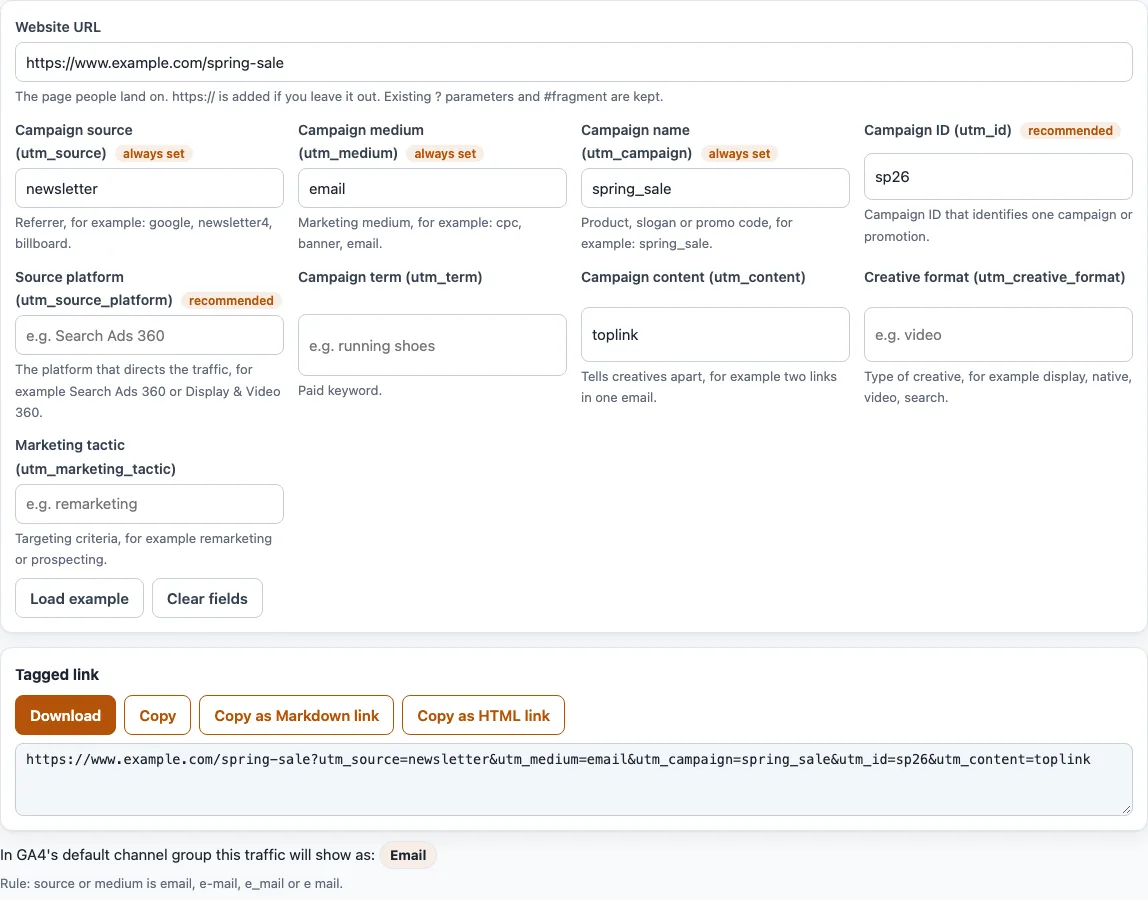
How to build a campaign URL
- Type the page you want to track into “Website URL”.
https://is added if you leave it out, and existing?parameters and a#fragment are kept. - In “Campaign source (utm_source)”, type where the traffic comes from, such as
newsletter. - In “Campaign medium (utm_medium)”, type the kind of traffic, such as
email. - In “Campaign name (utm_campaign)”, type the campaign, such as
spring_sale. These three fields are marked “always set”. - In “Campaign ID (utm_id)” and “Source platform (utm_source_platform)”, both marked “recommended”, add the campaign ID and the platform if you use them.
- Fill in “Campaign term (utm_term)”, “Campaign content (utm_content)”, “Creative format (utm_creative_format)” or “Marketing tactic (utm_marketing_tactic)” only if you need them. Each field has a short hint and an example under it.
- Read the notes under the “Tagged link” box and the line “In GA4’s default channel group this traffic will show as:”.
- Click “Copy” or “Download”, or use “Copy as Markdown link” or “Copy as HTML link”.
“Load example” fills in the sample values (newsletter, email, spring_sale, sp26 and toplink) and “Clear fields” empties the form. Three options sit below it: “Lower-case all values” (on by default), “Spaces in values” and “Keep existing parameters” (on by default).
What is a campaign URL builder?
A campaign URL builder adds UTM parameters to a web address. GA4 reads these parameters when a visitor opens the link and uses them to label the session by source, medium and campaign. If you searched for a Google campaign URL builder, a Google Analytics campaign URL builder or a Google URL builder, note that this tool is not Google’s. It writes the same parameter names that Google’s help page lists.
A finished link is the base address, a question mark, and then name and value pairs joined with &. For the sample values the tool builds this campaign URL:
https://www.example.com/spring-sale?utm_source=newsletter&utm_medium=email&utm_campaign=spring_sale&utm_id=sp26&utm_content=toplink
You do not type any separators yourself, which makes it quick to build a campaign URL for Google Analytics and create a Google campaign URL without typos. The GA4 channel for this link is Email, and a note tells you that utm_source_platform is empty.
Which parameters does GA4 read?
The tool offers nine parameters from Google’s help page. Google says you should always use utm_source, utm_medium and utm_campaign. It also says that if you set one UTM parameter, you should set all relevant ones, especially those three plus utm_id and utm_source_platform. The tool marks the first three “always set” and the next two “recommended”. The remaining four are utm_term, utm_content, utm_creative_format and utm_marketing_tactic.
Google says utm_creative_format and utm_marketing_tactic are not currently reported in Google Analytics properties. The tool still adds them to the URL and shows a note.
How should I name my values?
GA4 treats values as exact text. Google’s help notes that SpringSale and Spring_Sale are considered distinct. Its best practices are one unique utm_source per platform, such as fb for Facebook, one unique utm_medium per channel, such as paid_social or organic_search, and one exact campaign name. By default this tool lowercases every value.
Which GA4 channel will the campaign URL land in?
The channel line applies the rules from Google’s “Default channel group” help page to your source, medium and campaign. Google states no order of precedence for those rules. The tool checks them in the order the page lists them, which is our reading. The link above shows Email because the medium is email.
Frequently asked questions
Is this Google’s campaign URL builder?
No. This site is not affiliated with Google, and this is not an official Google tool. It builds a campaign URL in your browser with the parameters Google documents.
What are utm_id and utm_source_platform for?
utm_id identifies a specific campaign or promotion. Google says to use the same IDs that you use when uploading campaign data. utm_source_platform names the platform that directs traffic to your property, such as Search Ads 360 or Display & Video 360.
Which fields should I always fill in?
Google’s help says you should always use utm_source, utm_medium and utm_campaign. It does not call any parameter formally required. It also strongly recommends setting utm_id and utm_source_platform when you set any UTM parameter.
Where do I see the data in GA4?
Open Reports > Acquisition > Traffic acquisition. You can view Session source / medium, Session medium, Session source and Session campaign there. UTM parameters are left out of the dimensions “Landing page + query string” and “Page path + query string”, so look in Page location instead.
Why do I see (not set) in my reports?
Google says that missing UTM parameters result in (not set) values in reporting. This is why the tool shows a note when you fill in one field and leave a source, medium, campaign, utm_id or utm_source_platform field empty.
Can I use it for an Android app?
Not directly. Google’s help says that if you advertise an Android app, you should use the Play Campaign URL Builder. This tool does not build Play Store URLs.
Related tools
- UTM builder: the shorter form with Quick picks and bulk tagging.
- GA4 channel checker for UTM: see which channel a set of source and medium values lands in.
- URL builder: add any query parameters, not only UTM tags.
- UTM parameters explained: what each UTM parameter means.
- UTM examples: finished links for common channels.
- UTM link checker: check a link that already has UTM tags.
- Email UTM builder: tag the links in an email campaign.