Email UTM Builder
Paste the HTML of your email and get the same email back with UTM parameters on every link. Only the link addresses change; utm_content is suggested per link and editable.
The email UTM builder adds UTM parameters to every link in an email, so clicks from that email can be told apart in your analytics. Paste the HTML or plain text of your email, set utm_source, utm_medium and utm_campaign once, and the tool gives you the same email back with tagged links. Only the href values change; everything else in the email stays byte for byte as it was.
It lists every link it finds, shows which were tagged and which were skipped with the reason, and suggests a utm_content for each link that you can edit. It runs in your browser, is free and needs no sign-up. Your email is never uploaded, and the page never visits the links.
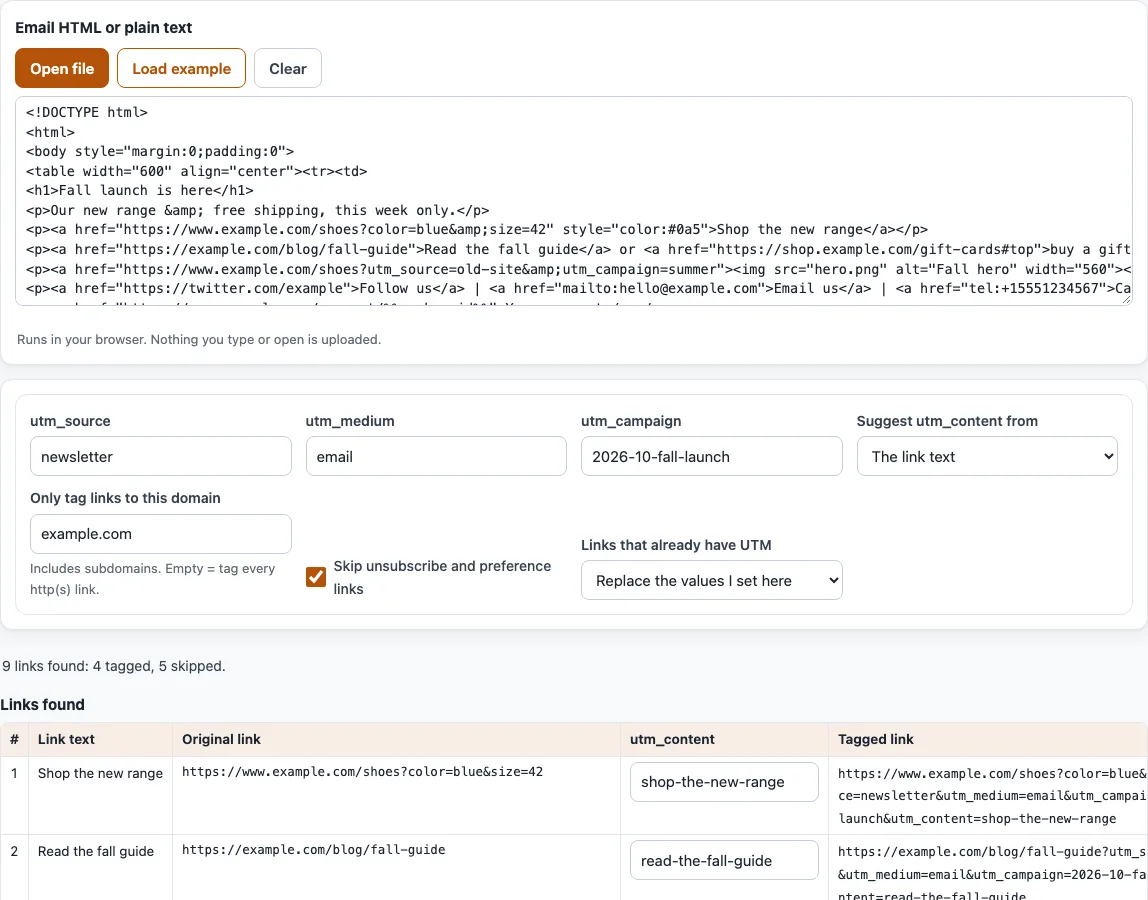
How to add UTM parameters to email links
- Paste your email into “Email HTML or plain text”, or use “Open file” for a
.html,.htm,.txtor.emlfile. “Load example” fills in a sample email. - Fill in
utm_source(starts asnewsletter),utm_medium(email) andutm_campaign(2026-10-fall-launch). All three are needed; the summary warns if one is empty. - Under “Suggest utm_content from” choose “The link text”, “The link’s position (link-1, link-2 …)” or “Nothing (no utm_content)”.
- In “Only tag links to this domain” enter your domain, for example
example.com. It includes subdomains. Leave it empty to tag every http(s) link. - Keep “Skip unsubscribe and preference links” ticked unless you want those tagged too.
- Under “Links that already have UTM” choose “Replace the values I set here” or “Keep their existing values”.
- Check the “Links found” table with the columns “Link text”, “Original link”, “utm_content” and “Tagged link”. Edit any
utm_contentand the tagged link updates as you type. - Read the summary, such as “9 links found: 4 tagged, 5 skipped.”, then select “Download” to save
email-tagged.html, or “Copy” for the “Email with tagged links” box.
Your settings are kept in the page address, so you can reopen the same setup later. The tagged HTML is shown in the last box and is not saved anywhere else.
What UTM should I use for email?
Set utm_medium to email, utm_source to the list, newsletter or automation that sent it, and utm_campaign to a name for the send. GA4 says to always use these three, and values are case sensitive, so pick one spelling. For example: utm_source=newsletter, utm_medium=email, utm_campaign=2026-10-fall-launch. A dated campaign name makes one send easy to tell apart from another in reports.
utm_content is optional and tells links apart inside one email. Google describes it as differentiating creatives, such as two call-to-action links in the same email. If an email has a button and a text link to the same page, give each its own value, such as shop-now-button and shop-now-text.
UTM source email vs UTM medium email
utm_source says who or where the traffic comes from, such as your newsletter name. utm_medium says the kind of channel, here email. GA4’s default channel group puts traffic in Email when the source or medium is email, e-mail, e_mail or e mail, not case sensitive. So utm_medium=email lands in Email even when utm_source is your newsletter’s name. Reports still list Email and email as different values, so keep one spelling.
What does the example show?
With the sample email and the domain example.com, the tool finds 9 links: 4 are tagged and 5 are skipped. “Shop the new range” becomes https://www.example.com/shoes?color=blue&size=42&utm_source=newsletter&utm_medium=email&utm_campaign=2026-10-fall-launch&utm_content=shop-the-new-range, and in the HTML the & are written &. The image link with the alt text “Fall hero” already has utm_source=old-site&utm_campaign=summer; with “Replace the values I set here” those two become your values and the utm_content is fall-hero. The links to twitter.com (other domain), mailto:, tel:, a merge tag and an unsubscribe link are skipped.
What does the tool leave alone?
It never rewrites mailto:, tel:, sms:, javascript: and # links, relative addresses, or links that contain merge tags (double curly braces, *|...|*, %%...%% and similar). It also skips other domains when you set one, and unsubscribe or preference links while that option is on. Links inside normal HTML comments are ignored; links inside Outlook conditional comments are included. In plain text it tags bare http(s):// addresses without trailing punctuation.
Frequently asked questions
How do I track email links in Google Analytics?
Tag every link with utm_source, utm_medium and utm_campaign, with the medium set to email. GA4 reads them, and its Email rule matches the medium. This tool adds the tags to every link in one step.
Do Mailchimp or HubSpot add UTM automatically?
Mailchimp’s help says it supplies a default email title that “will appear in your Google Analytics account and your tracking URLs”, and that in automation flows you can edit the UTM parameters of each email. It does not list the values it adds, so check your own tracking URLs. This page cannot say what HubSpot adds, because its help pages could not be read. Either way you can paste an email from any platform into the tool.
Why was a link skipped?
The reason is shown in the “utm_content” column of the table, for example “Skipped: other domain” or “Skipped: contains a merge tag”.
How are ampersands written in the tagged HTML?
If the original link used & or had no &, the tagged link uses &. If the original used a bare &, it stays bare. Quotes inside a value are escaped, and an unquoted href gets double quotes, because HTML does not allow = in unquoted values.
What happens if a link already has UTM values?
With “Replace the values I set here”, only the UTM keys you set are replaced, and other utm_ keys such as utm_term stay. With “Keep their existing values”, existing values stay and only missing keys are added. Other parameters and the #fragment are kept either way.
Does the tool keep my email private?
Yes. It runs in your browser, so your email is never uploaded, and the links are never opened.
Related tools
- UTM link checker: review a link you already have before you send.
- UTM tracking audit: check a whole list of tagged links against naming rules.
- UTM examples: complete tagged links for different channels.
- UTM builder: build a single tagged link by hand.
- UTM parameters: what each UTM parameter means.
- Google UTM and GA4 channels: check which GA4 channel your tagged links land in.