UTM Content: Tag Every Variant of a Link
List your ad creatives, buttons or link positions and get one tagged URL per variant, ready to copy or download as CSV.
utm_content parameter, a tag you add to a link so analytics can tell apart versions of the same ad, email or button. This tool builds one tagged link per variant from a single list, so each version carries its own utm_content value. Enter a landing page address, set the shared source, medium and campaign once, then type one variant per line, such as hero-button or footer-link. You get the links as a text file, as a CSV file, or in a table with a “Copy” button for each row. It runs in your browser, is free and needs no sign-up. Nothing you enter is uploaded, and the page never visits the links.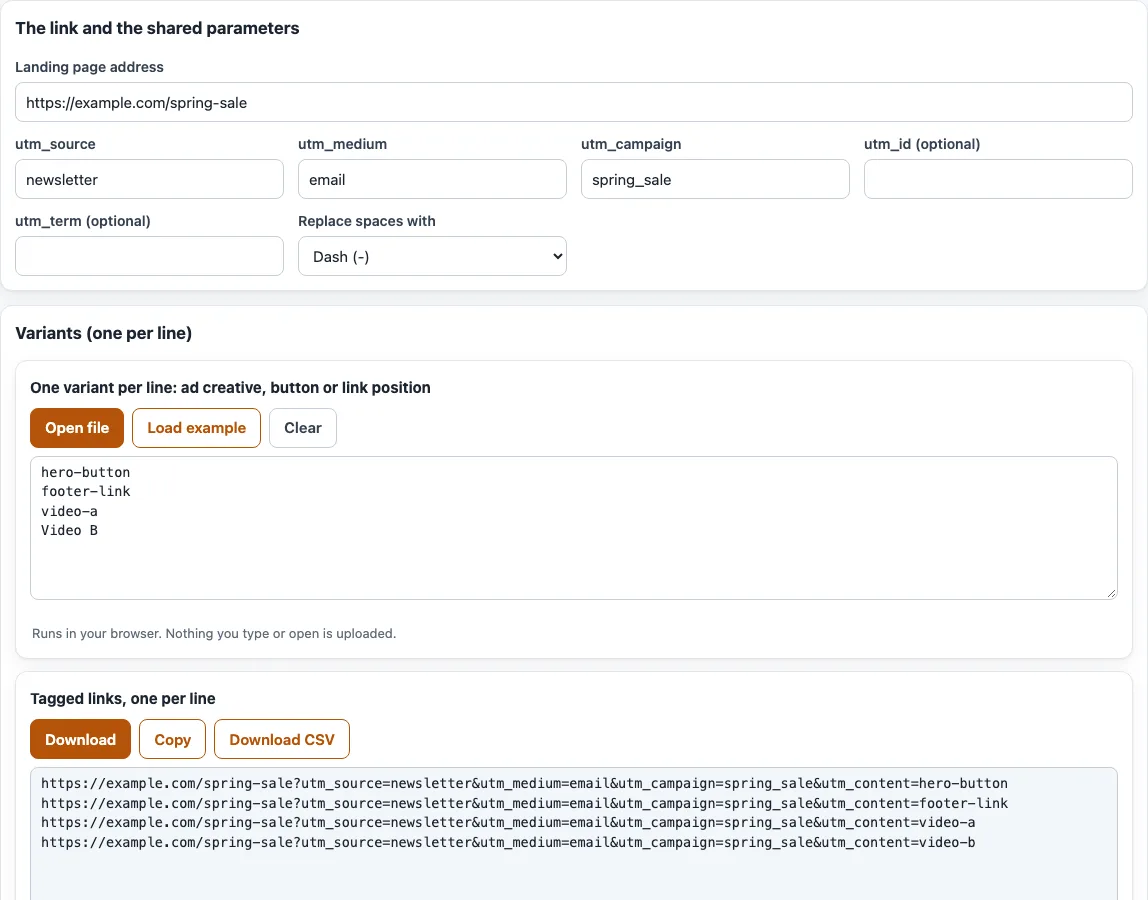
How to tag link variants with utm_content
- Paste your page address into “Landing page address”. It starts as
https://example.com/spring-sale. - Check the shared fields.
utm_source(newsletter),utm_medium(email) andutm_campaign(spring_sale) are examples, so replace them with your own values. “utm_id (optional)” and “utm_term (optional)” start empty. - Under “Replace spaces with”, choose “Dash (-)” or “Underscore (_)”. With a dash, “Video B” becomes
video-b. - In the variants box, type one variant per line: an ad creative, a button or a link position. The box starts with hero-button, footer-link, video-a and Video B; use “Open file” to load a text file instead, or “Load example” to bring the sample back. Each line is lower-cased and its spaces are replaced.
- Read the table under the links. It has the columns “Variant”, “utm_content”, “Link” and “Notes”, and each row has its own “Copy” button. A line that gives the same value as an earlier one is flagged as a duplicate variant, so fix it before you use the links.
- To get every link at once, use “Download” for a text file with one link per line, “Copy” for the whole list, or “Download CSV” for a file with the columns variant, utm_content and url.
If your address already has a utm_content, the tool replaces it. Any other query parameters and any #fragment stay in place. Your settings are kept in the page address.
What is utm_content?
utm_content is an optional URL parameter that tells analytics which creative or link someone clicked. Google describes it as differentiating creatives, such as two call-to-action links in one email. Use it when links share the same source, medium and campaign and you still need to tell them apart.
Values are case sensitive, so Hero-Button and hero-button are different values. That is why the tool lower-cases every variant.
UTM content examples
Each variant becomes one utm_content value. With the defaults, the variants hero-button and footer-link give these links:
https://example.com/spring-sale?utm_source=newsletter&utm_medium=email&utm_campaign=spring_sale&utm_content=hero-button
https://example.com/spring-sale?utm_source=newsletter&utm_medium=email&utm_campaign=spring_sale&utm_content=footer-link
The variant “Video B” becomes utm_content=video-b. Other useful values are video-a, banner-300x250 and text-link. Because source, medium and campaign are the same in every link, the only difference is the content value.
Where do I see utm_content in Google Analytics?
In GA4 the value is reported as the dimension “Session manual ad content”. It only has a value for sessions that arrived through a link carrying utm_content. In GA4 utm_source, utm_medium and utm_campaign should always be set, while utm_content is optional.
How do I A/B test with utm_content?
Use the same campaign for every version, give each version its own utm_content value, and compare the sessions in your reports grouped by that dimension. Change one thing between versions, such as the button text or its position, so you know what caused a difference. For example, send video-a and video-b on the same day to a similar audience and compare the two values.
utm_content vs utm_term
utm_content marks the creative or link that was clicked. utm_term is for the paid keyword. Use utm_content to separate versions of an ad, email or button, and utm_term only when you need to record the keyword behind a click. The utm_term field in this tool is optional.
Frequently asked questions
Is utm_content required?
No. It is optional in GA4, while utm_source, utm_medium and utm_campaign should always be set. Add it only when you have more than one version to tell apart.
What happens if my link already has a utm_content?
The tool replaces it with the value from your variant. The rest of the query string and any #fragment stay as they were.
What happens to capital letters and special characters?
Each variant is lower-cased and its spaces are replaced with a dash or underscore. Other characters are kept, but the “Notes” column flags values that contain unusual characters, such as !, so you can rename them.
Can I load a long list of variants?
Yes. Use “Open file” to load a text file with one variant per line. Duplicates are flagged in the “Notes” column.
How many variants can I tag?
There is no limit set by the page: add one variant per line. Each line gets its own row in the table and its own link in the results.
Does this tool upload my links or variants?
No. Everything runs in your browser, so the links and lists you enter are never uploaded, and the page never visits the links.
Related tools
- UTM parameters: a plain definition of each UTM tag before you build links.
- UTM source: choose a consistent source value, such as newsletter.
- UTM medium: check your medium value, such as email, and the GA4 channel it lands in.
- UTM campaign: build a campaign name that matches across all your links.
- UTM term: encode a paid keyword as a
utm_termvalue. - UTM builder: build a single tagged link with all the UTM fields.
- Google UTM and GA4 channels: check how a tagged link lands in GA4 channel reports.