UTM Example Links for Every Channel
Thirteen ready-made UTM link examples by channel. Type your page and campaign once and every example updates, with the GA4 channel each one lands in.
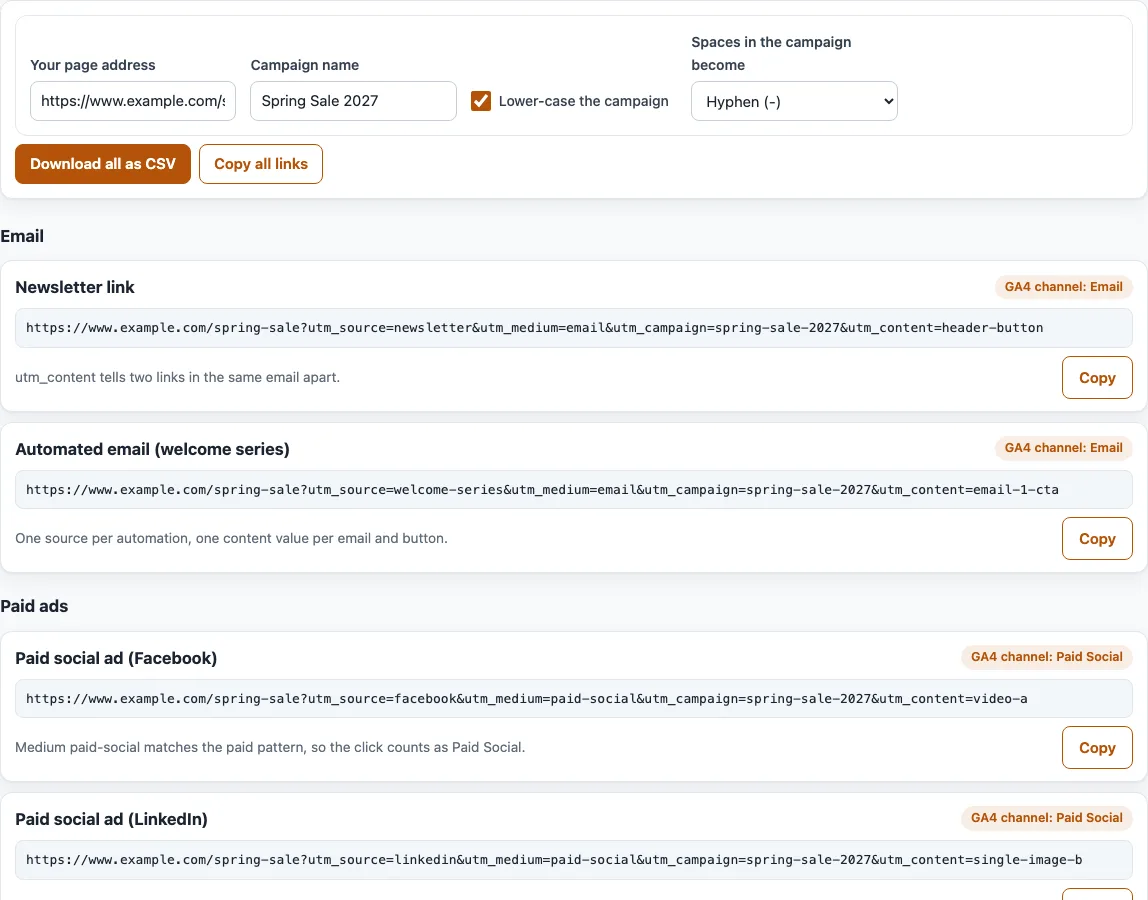
How to use the UTM examples
- In “Your page address”, enter the page you want to track. It starts as
https://www.example.com/spring-sale, and a missinghttps://is added for you. - In “Campaign name”, enter your campaign. It starts as “Spring Sale 2027”.
- Leave “Lower-case the campaign” ticked to write the name in lower case, and choose what “Spaces in the campaign become”: “Hyphen (-)” or “Underscore (_)”. “Spring Sale 2027” becomes
spring-sale-2027. - Scroll through the 13 cards in six groups: “Email”, “Paid ads”, “Organic social”, “Partners”, “SMS and audio” and “Print and offline”.
- Each card shows a name, the finished link, a “GA4 channel:” badge and a short note. Select “Copy” on the card to copy that link.
- To take all of them, select “Copy all links”, or “Download all as CSV”.
Only the campaign name is cleaned. The other values, such as newsletter, header-button or qr-code, are fixed example values, so change them to your own. Any existing query and #fragment in your page address are kept, and the UTM parameters are added at the end of the query, before the #. Your fields are kept in the page address, so you can bookmark or share a setup. The “GA4 channel:” badge is a guide based on Google’s published rules for manually tagged traffic.
What does a UTM example look like?
A UTM link is a normal page address followed by a ? and name=value pairs joined by &. Each pair tells your analytics tool where a visit came from. With the defaults, the newsletter example is:
https://www.example.com/spring-sale?utm_source=newsletter&utm_medium=email&utm_campaign=spring-sale-2027&utm_content=header-button
utm_source names the sender, utm_medium the kind of channel, utm_campaign the campaign, and utm_content tells two links apart, such as two buttons in one email. The podcast example ends utm_source=podcast-name&utm_medium=audio&utm_campaign=spring-sale-2027&utm_content=mid-roll.
UTM parameter example: which parameters are required?
GA4’s help says to always use utm_source, utm_medium and utm_campaign; utm_content, utm_term and utm_id are optional. The examples include all three required ones. utm_content is in most cards, and utm_id and utm_term appear only in the Google Ads example. The source, medium and content names are suggestions of this tool, not platform requirements.
Which channel does each example land in?
The medium mostly decides the channel under GA4’s manual-traffic rules:
- Newsletter and welcome series, medium
email: Email. - Facebook and LinkedIn with
paid-social: Paid Social. The medium must match^(.*cp.*|ppc|retargeting|paid.*)$and the source must be a listed social site. googlewithcpc: Paid Search.- Medium
display: Display. - Medium
social(a post, a bio link): Organic Social. - Medium
affiliate: Affiliates. Mediumreferral: Referral. - Source and medium
sms: SMS. Mediumaudio: Audio. - Medium
qr-code: Unassigned, because the default channel group has no rule for it. Choose a medium from the channel rules if you want QR visits in a named channel.
What do the curly braces in the Google Ads example mean?
The Google Ads card ends utm_id={campaignid}&utm_term={keyword}&utm_content={creative}. These are ValueTrack parameters. Google Ads replaces {campaignid} with the ID of the campaign that served the ad, {keyword} with the matching keyword in your account, and {creative} with the unique ID of the ad. If Google Ads cannot insert a value, the parameter is replaced with an empty space; {keyword} is blank for keywordless matches such as AI Max, DSA and Performance Max. The braces are left unencoded on purpose. The tool does not say where in Google Ads to paste them, so follow Google’s own setup steps.
Is there a UTM template?
Each card is a template, and the CSV has the columns example, channel_group, url, utm_source, utm_medium, utm_campaign, utm_content, utm_term and utm_id. The basic pattern is https://example.com/?utm_source=SOURCE&utm_medium=MEDIUM&utm_campaign=CAMPAIGN. Replace the capitals with your own lower-case values and keep them consistent.
Frequently asked questions
Can I use a UTM example on a printed flyer?
Yes. The “QR code on print (flyer, poster)” card uses utm_source=flyer and utm_medium=qr-code. GA4 has no default rule for that medium, so the visits are counted as Unassigned.
Why does the podcast link land in Audio?
The card sets utm_medium=audio, and GA4’s rules put medium audio in the Audio channel. Keep the medium exactly as written.
Why is the campaign name in lower case?
“Lower-case the campaign” is on by default because GA4 values are case sensitive. Turn it off if you need capitals; the other values stay as fixed examples.
What is the utm_id in the Google Ads example?
It is the ValueTrack tag {campaignid}, which Google Ads fills in with the ID of the campaign that served the ad.
Are the example values required?
No. Names such as header-button or qr-code are suggestions of this tool, not platform requirements. Replace them with your own consistent lower-case values; only the medium needs care, because GA4 uses it to pick the channel.
Does the tool send my links anywhere?
No. It runs in your browser. Nothing you enter is uploaded, and the links are never opened.
Related tools
- UTM link checker: check a finished link for mistakes before you share it.
- UTM tracking audit: review a whole list of tagged links.
- Email UTM builder: tag every link in an email.
- UTM builder: build a single tagged link from your own values.
- UTM parameters: what each parameter means.
- Google UTM and GA4 channels: see which GA4 channel a UTM link lands in.